Saturday, July 12, 2008

RG 45

RJ-45

The RJ-45 connector is commonly used for network cabling and for telephony applications. It's also used for serial connections in special cases. Here's a look at it:
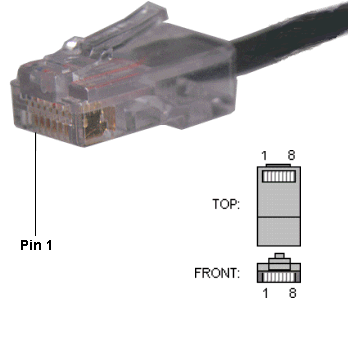

RJ-45 Connector


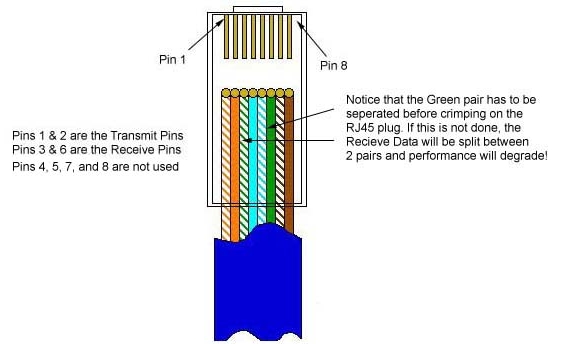
Also, please note that it is very important that a single pair be used for pins 3 and 6. If one conductor from one pair is used for pin 3 and a conductor from another pair is used for pin 6, performance will degrade. See the following figure.
To learn more about Ethernet, check out Charles Spurgeon's Ethernet Reference.

RJ-45 Pinout for RocketPort

The following chart shows the pinout for RJ-45 connectors used on certain RocketPort serial interface cards (manufactured by Comtrol).

Pin Name/Description
1 Request To Send
2 Data Terminal Ready
3 Ground
4 Transmit Data
5 Receive Data
6 Data Carrier Detect
7 Data Set Ready
8 Clear To Send

Pinouts for ISDN

Here's an ISDN BRI U port pinout for a Cisco 750 series router:

Pin Function
1 Not used
2 Not used
3 Not used
4 U interface network connection (tip)
5 U interface network connection (ring)
6 Not used
7 Power (pass-through to S connector)
8 Ground (pass-through to S connector)

The following chart shows the pinout for RJ-45 connectors used on certain ISDN S/T interfaces. For more info, see ANSI T1.605.

RJ-45 wiring for Ethernet (T568B standard)
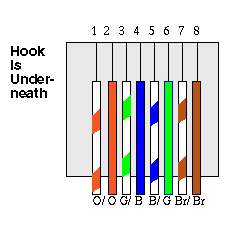
Pin Color Name/Description
1 White/Orange N/A
2 Orange N/A
3 White/Green Receive+
4 Blue Transmit +
5 White/Blue Transmit -
6 Green Receive -
7 White/Brown -48VDC (optional)
8 Brown -48VDC Return (optional)

Saturday, June 28, 2008

Blogger Under Posting Comment box

Now, blogger(blogspot) have developed their comment box. Last time ago, if we want to post a comment there should be only a link under our posting, and we have to click the link send a comment, it's not interesting. But now we can find a comment box under our post exactly. It's original from blogger, it's not like haloscan or intensedebate. But it's truely from blogger/blogspot. You can see it under this post.
Here is the trick to create comment box under your post.

1. Login to http://draft.blogger.com
2. Go to Setting-->Comments. then change "Comment Form Placement" to be "Embedded below post" (look at the image below)


3. Then "Save Setting"
Try to see your blog and klik on your titile post. if there is a embadded commnet box below your post just stop this step here. But if there is no comments box, just follow the next steps here.

4. Go to "Layout-->Edit HTML"
5. Check the "Expand widget templates" box.
6. Find this code :

<p class='comment-footer'>
<a expr:href='data:post.addCommentUrl' expr:onclick='data:post.addCommentOnclick'>
<data:postCommentMsg/></a>
</p>
</b:if>


7. Then replace it with this code :

<p class='comment-footer'>
<b:if cond='data:post.embedCommentForm'>
<b:include data='post' name='comment-form'/>
<b:else/> <b:if cond='data:post.allowComments'>
<a expr:href='data:post.addCommentUrl' expr:onclick='data:post.addCommentOnclick'>
<data:postCommentMsg/></a>
</b:if> </b:if> </p> </b:if>


8. Save your Template.

I've deleted my last comment box (haloscan). so now I lost all of my comments before. I do it to get this comment box.

Monday, June 16, 2008

Show Related Article to Your Post

The advantage of showing related article to your post is it will help your readers find more information related to the topics. This is base on label or category. This is usually put to the end of the article. After your visitors finish read your article, they will find some links that related to the post base on label or category.
Here's the tutorial to create "related article to your spot":

1. Login to Blogger
2. Go to "Layout-->Edit HTML"
3. Click on "Expand Widgets Template" checkbox.
4. Then download THIS SCRIPT or HERE.
5. Open it then copy the scripts.
6. Paste the script after this code : <data:post.body/>. If you have "Read more widget" you will find two codes. Put it under the first code.
7. Save your template.

Good Luck...